Integrating Salesforce SSO with Okta
In today’s interconnected enterprise landscape, Single Sign-On (SSO) is no longer a luxury—it’s a necessity. SSO provides users with a secure, one-click access point to all their critical business applications, drastically improving the user experience and strengthening the organization’s security posture.
This guide focuses on the powerful combination of Salesforce, the world’s leading Customer Relationship Management (CRM) platform, and Okta, a top-tier Identity Provider (IdP). By integrating the two using the SAML protocol, we centralize identity management and enable secure, frictionless access for all users.
Challenge
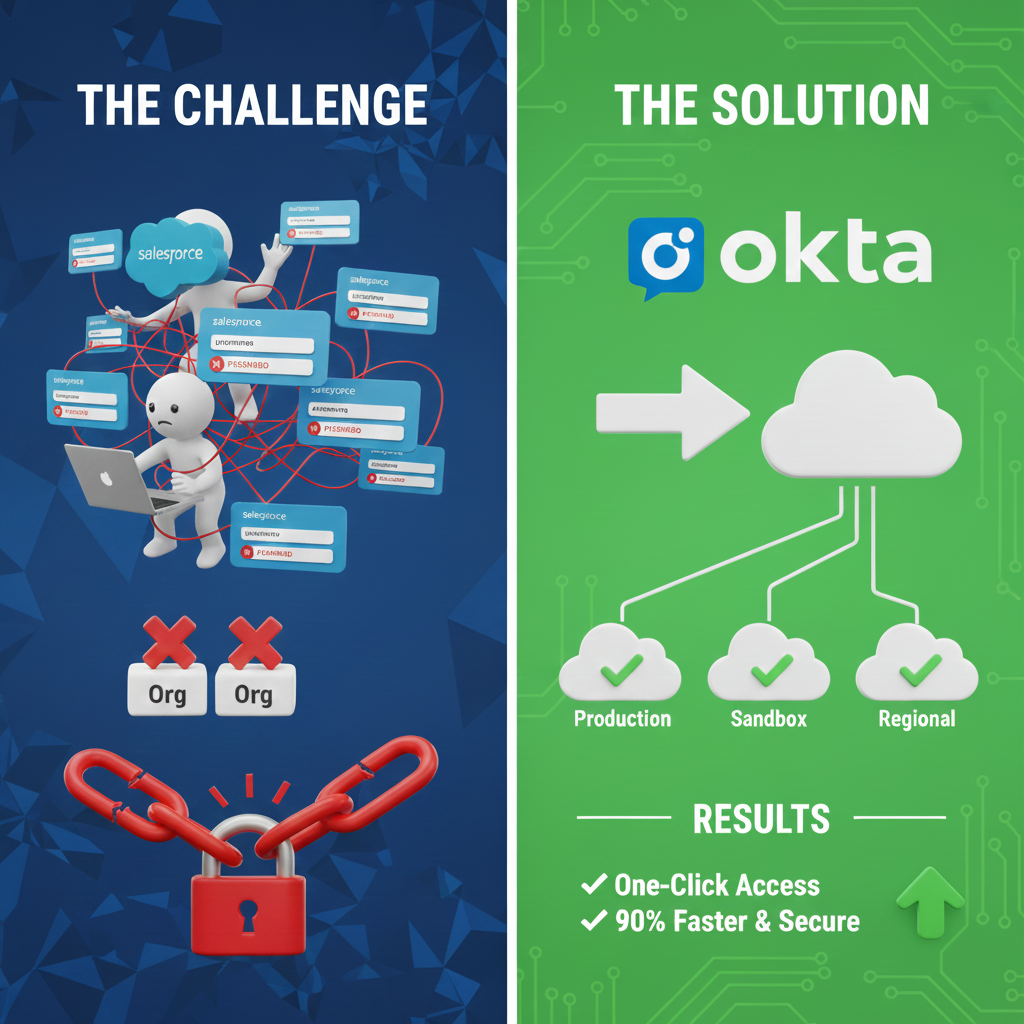
Before implementing a unified SSO solution using Okta and Salesforce, our internal teams faced significant friction, security risks, and high administrative overhead due to a fragmented login environment across our multiple Salesforce Orgs (e.g., Production, various Sandboxes, regional instances).
These were the core issues we were determined to resolve:
1. The Multi-Login User Tax (Friction and Lost Time)
The lack of a single sign-on experience created major friction for every user who needed to work across different Salesforce environments.
-
-
- Credential Overload: Users were forced to manage, memorize, and constantly input separate usernames and passwords for every single Salesforce Org they accessed.
- Context Switching Delay: Logging in and out of multiple Orgs throughout the day was a repetitive, time-consuming task. This “login tax” reduced productivity and created unnecessary frustration, particularly for administrators and power users who regularly toggle between environments.
- Inconsistent Password Policies: Manual password management led to varying security standards and frequent password reset requests, placing an unnecessary burden on our IT help desk.
-
2. The Provisioning and Deprovisioning Headache
Managing user identity manually across multiple, independent systems was slow, error-prone, and a major security concern.
-
-
- Slow Onboarding: When a new employee was hired, IT staff had to manually create an account for them in Okta and then manually create or activate an account in each relevant Salesforce Org. This significantly delayed new hire ramp-up time.
- The Critical Security Gap (Deactivation): The most severe risk was manual deprovisioning. When an employee left, ensuring their access was immediately revoked across every single Salesforce Org was a slow, manual process. Any missed Org created a severe security vulnerability, leaving sensitive customer data exposed.
- Data Drift: Keeping user attributes (like department or job title) consistent across the HR system (Okta) and all Salesforce Orgs was nearly impossible, leading to inconsistent reporting and broken internal processes.
-
3. High Administrative and Audit Costs
The complexity of the manual setup consumed valuable IT resources.
-
-
- Excessive Maintenance: Managing credentials, resetting passwords, and manually ensuring access compliance for hundreds of users across multiple independent Orgs was a high-volume, repetitive, and costly administrative task.
- Audit Complexity: Proving during security audits that access was uniform and that all terminated users were instantly deactivated across all systems was a difficult and time-intensive process.
-
Solution
The solution involves a systematic, multi-step configuration process leveraging SAML for SSO and API-based provisioning for user lifecycle management.
1. Okta Application Setup (SAML Configuration)
-
-
- Add Application:
- Login to the Okta Admin portal and navigate to Applications.
- Click on Add Application and select the Salesforce.com application, then choose SAML as the sign-in option.
- Configure Domain:
Retrieve your custom domain URL from the Salesforce My Domain setup and paste it into the custom domain field in Okta. - SAML setting:
- Select SAML2.0 as the sign-in option and enable single log-out.
- In the SAML section you will get the Instructions for Identity Provide information.
- Add Application:
-
2. Salesforce SSO Settings
-
-
- Enable SAML:
- In Salesforce Setup, navigate to Single Sign-On Settings and enable SAML.
- Click New to create a new SAML Single Sign-On setting.
- Copy Credentials:
Navigate to the View Setup Instructions for the Salesforce app in Okta to find the necessary details. - Configure Salesforce:
- Provide a Name for the SAML setting (e.g., “Okta SAML”).
- Copy and paste the Issuer details from the Okta instruction page into Salesforce.
- Download the Identity Provider certificate file from Okta and Upload it from choose file button.
- Configure the Entity ID by copying your current My Domain URL and ensuring it begins with https://.
- Copy and paste the Login and Logout URL from Okta and save the setting.
- Upload to Okta (Optional but Recommended):
- Download the Salesforce Metadata
- Copy the certificate content from this file and place it inside below lines.
—–BEGIN CERTIFICATE—–
XXXXXXXXXXXXX
—–END CERTIFICATE—- - Save this content as a .crt file (e.g., “Octacerti.crt”).
- Return to the Okta application, upload this certificate, and also upload the Salesforce Login and Logout URL.
- Enable SAML:
-
3. Establishing Provisioning (Salesforce Connected App)
-
-
- Create Connected App / External Client App:
Go to the Salesforce App Manager and create a Connected App / External Client App. - Configure OAuth:
Provide the necessary details for OAuth, ensuring the following are set:- Callback URL: https://system-admin.okta.com/admin/app/generic/oauth20redirect
- Selected OAuth Scopes:
Enable ->- Manage user data via APIs (api)
- Perform requests at any time (refresh_token, offline_access).
- Policy & Keys:
- Confirm the policy for Permitted Users is set to All Users can authorize.
- After saving, request the Customer Key and Secret from the Connected App details.
- Create Connected App / External Client App:
-
4. Finalizing Provisioning in Okta
-
-
- Update Provisioning Details in Okta:
Navigate back to the Salesforce application in Okta and go to the Provisioning section. - Authenticate:
- Update the Provisioning API settings with the Customer Key and Secret obtained from the Salesforce Connected App.
- Click on Authenticate with Salesforce, mark Push Null Value, and save.
- Assign Users:
- Assign the application to your Okta Users.
- This final step ensures both SSO and automated user lifecycle management are fully operational.
Note: If You are using the Connected App, make sure to add it in Authentication service in your Domain.
- Update Provisioning Details in Okta:
-
Results
Upon successful integration and assigning the application to users in Okta, the organization achieves:
-
-
- Single-Click User Access: Users can navigate to their Okta dashboard and click the Salesforce application icon to be immediately logged in without needing a separate Salesforce password.
- Enhanced Security: Centralizing authentication through Okta allows for the enforcement of consistent, strong security policies, including Multi-Factor Authentication (MFA), across all connected applications.
-
Streamlined User Lifecycle Management:
Automated provisioning ensures that new hires gain instant access and that access for departing employees is revoked immediately upon deactivation in Okta, improving operational efficiency and reducing security risk